
3D Aim
Build groups of moving heads on the Stage, make their positions, and turn them by hand or aim them at targets in 3D. The Positions panel recalls them.
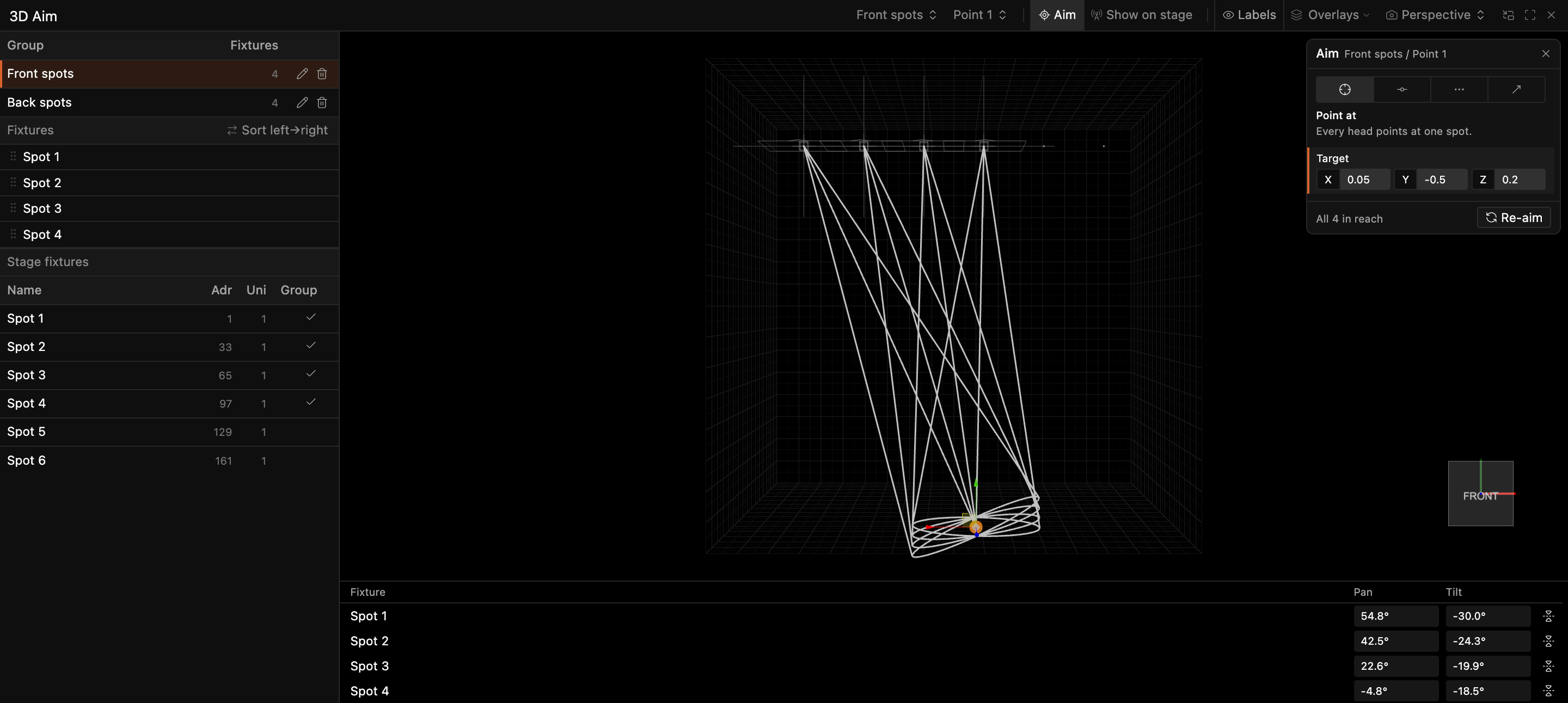
3D Aim is where you make and edit positions for your moving heads. You can turn the selected heads by hand or drag where a beam lands. You can also drag a target, and Spectralite works out the pan and tilt that each head in the group needs to hit it. Every edit goes into a stored position, and the Positions panel recalls it during the show. 3D Aim itself never recalls a position or lets a group go. Both panels open together in the Positions workspace.
Related concept: Layouts.
3D Aim always works on the Stage: the fixture layout you mark with Use as Stage in the Layouts panel. With no Stage set, the panel asks you to choose one. Positions still recall without it.
Groups
The Groups list at the top of the sidebar shows every position group, with how many heads it aims and how many positions it holds. To show a group, click it or pick it in the toolbar's Group select. Showing a group selects its first position.
To rename a group, double-click it. You can also use the pencil, copy and bin buttons beside it, or right-click it for Rename, Duplicate and Delete group. Duplicate, or Cmd+Shift+D for the shown group, adds a copy right after the group and shows it. The copy is named with "(copy)" and has the same heads and a copy of every position. When you delete a group, you also delete its positions, so Spectralite asks first and says how many go with it. Undo brings the group back.
Building a group
To select heads in the viewport, click one, Cmd-click or Shift-click to add or remove one, or Shift-drag a box, which selects in patch order. You can also select them in the Stage fixtures table, which works like the fixture list in the Layout Editor. There, Shift-click selects a range, Cmd-click adds or removes one, and Cmd+A selects every fixture on the Stage. The viewport and the table share one selection, and so does every other 3D Aim panel. A MIDI or DMX control can turn the selection's pan and tilt: see the selection controls in MIDI.
New group in the table's toolbar, or Cmd+G, makes a group of the selected heads. The group keeps the order in which you picked them, and its name opens for typing. A new group starts with Position 1, with every head at its default pan and tilt. Add adds the selected heads to the current group. Right-click a selected fixture to add the selection to the current group, take it out of the group, or make a new group of it. Right-click a fixture outside the selection for the same commands on that fixture alone.
A tick marks the fixtures of the current group. Fixtures that are not placed on the Stage show in grey, and you cannot select them.
The Fixtures list holds the heads of the group in order, and Spread along line uses that order. Drag a head by its grip to reorder it. Sort left→right orders the group by where the heads sit across the Stage. Click a head's name to select it, Cmd-click to add or remove one, and Shift-click to select the heads between the last one you clicked and this one, as in the Stage fixtures table. The list also highlights the heads you select anywhere else. To take a head out of the group, click the cross beside it. To take out every selected head, right-click one of them and choose Remove from group.
A head that you add joins every position the group already has, at its default pan and tilt. That is the value from its fixture profile, or the middle of each range when the profile sets none. So every position always holds every head.
Amber text in this list and a warning sign in the table flag two kinds of fixture. One is a fixture with no angle range, which you set in the Fixture Editor. The other is a group member that is not placed on the Stage. Positions skip flagged heads.
Labels in the toolbar, or L, shows the name of each fixture in the viewport, as in the Layout Editor.
Each fixture shows as a simple body, the same body that the Layout Editor shows, with every head turned to point along its beam. A head takes the flip that its position stores, so the yoke and head show which way round it reaches the target. Hover over a fixture or pick it to see a ring around each axis it turns on. A picked fixture also shows a needle at its angle on each ring. Click a body or its dots to pick the fixture. Fixtures in the toolbar switches between Silhouettes and flat Plot Symbols. It is the same choice as Fixtures in the Window menu.
Positions
The Positions list below the groups holds the positions of the shown group. Click a position to edit it. Whatever you aim or turn from then on goes into that position. The viewport shows where the position points, also while it is not on stage.
New position at the top of the list stores a new position from where the group's lights point now. Spectralite names it Position 2, Position 3 and so on, and selects it. For each head it takes the angles of the position that drives the head on stage, or the head's own pan and tilt when no position does. The button is greyed out while the group has no head that pans or tilts.
To rename a position, double-click it. You can also use the pencil, copy and bin buttons beside it, or right-click it for Rename, Duplicate and Delete. Duplicate, or Cmd+D for the selected position, adds a copy with the same angles right after it and selects the copy. Delete asks for no confirmation, because undo brings the position back. A group always keeps one position, so the bin and Delete are greyed out on its last position. To reorder a position, drag it by its grip. The Positions panel shows the same order.
With no group at all, the viewport shows every head on the Stage where it points now, read only, and asks you to make a group.
Aiming by hand
The aim tools sit in the Aim card in the top right corner of the viewport, and Manual is the first of them. Aim in the toolbar hides and shows the card, which helps when the panel is narrow. Esc inside the card returns to the viewport.
Select the heads that you want to turn, then use the card's Pan and Tilt fields. Drag a field to turn every selected head by the same amount, so their spread stays. Each head stops at the end of its own range. Type a value to set every selected head to it. A field reads – when the selected heads disagree. Both fields are greyed out until you select a head. Only the heads of the group turn, and the edits change the selected position, which is then marked as tweaked.
You can also point a head at a spot. With the Manual tool, each selected head has a ball where its beam meets the floor, a wall or the ceiling of the Stage. Drag the ball to point that head there. The other selected heads turn along by the same amount. A whole drag is one undo step, and so is a whole drag of a field.
Aiming with a tool
The other four tools in the Aim card solve a whole group from handles that you drag, and store the result in the selected position. When you select a position, the tool and Reverse return to the ones that aimed it. A position made with New position has no tool yet and shows Manual. With no group, the card asks you to make one.
Each tool draws one or two handles in the viewport, and the card lists each handle with its X, Y and Z fields. To select a handle, click it in the viewport or click its row in the card. The row of the selected handle has an orange edge. To move a handle, drag its arrows. To move it by number, drag a field to scrub it or type a value. The Stage spans -0.5 to 0.5 on each axis, with Y as height and the floor at -0.5.
The beams and the bodies follow as you drag. A whole drag, of any length, is one undo step. The bottom of the card counts the heads in reach. When some heads are out of reach, it turns amber and shows how many.
Aim tools
- Point at: every head aims at the same point. One handle: the target.
- Nearest on line: each head aims at the point on a line that is closest to the head itself. As a result, the heads spread along a truss edge or a stage lip in their own order. Two handles: the ends of the line.
- Spread along line: the heads share out the line evenly in group order, the first head at one end and the last at the other. Reverse flips the order. A group of one aims at the middle.
- Same direction: every head points the same way, so the beams are parallel. The handle, Aim point in the card, sets the direction. The beams point the way the handle lies from the middle of the group.
When you pick another tool or flip Reverse, 3D Aim previews the result. The new handles appear with the beams they would give, and the stored beams stay behind them in grey. A position without a tool previews the tool you pick, from its default target. Nothing changes until you click Aim with Spread along line or drag a handle, which stores the new tool with the position. The button takes the name of the tool shown. Cancel goes back to the position's own tool.
Beams
Each head draws a line in the direction its beam points. It also draws two lines down the sides of its cone, as wide apart as its beam angle and turned to face you. Both end where the beam leaves the Stage through the floor, a wall or the ceiling, at the same place as the Manual tool's ball, so you see what each head points at. They look like the Beam directions and Cone outlines overlays of the Preview, at the same width. Only the color differs: the text color, or amber for a head that cannot reach.
The cone shows the beam angle from the fixture's profile, not the current zoom. If the profile gives no beam angle, the head draws only its line. Overlays in the toolbar turns the lines and the outlines on and off. Both are on by default.
Editing the position on stage
You recall positions and let groups go in the Positions panel, not here. When the position you edit is the one on stage (the group's active position), the lights move as you edit it. Any other position changes only in the viewport until you recall it.
Heads
Below the viewport, a row for each head of the group shows its pan and tilt in degrees in the selected position. To set either value by hand, type into it. Rows of selected heads are highlighted. Click a head's name to select it, with the same Cmd and Shift keys as the Fixtures list. A hollow dot after the head's name marks a value as tweaked. A pan or tilt you drag in the Parameters panel while the position is active counts as a tweak too.
An amber dot means the head could not reach the target and aims as close as its ranges allow. A fixture that only tilts or only pans shows – for the axis it lacks. It aims as near the target as its one axis turns. Its dot turns amber only when that axis stops at the end of its range.
Most moving heads can hit one target two or more ways, for example pan 30° with tilt up, or pan 210° with tilt over the other side. Spectralite picks the solution nearest the middle of both ranges, so identical heads land alike. Flip turns a head the other way round to the same point and steps through its other solutions. Spectralite keeps the choice when you drag or re-aim.
Spectralite does not keep a flip between two ways that sit about equally near the middle, as for a head that points almost along its truss. When a drag or re-aim makes one way clearly nearer the middle, the head takes that one. Flip needs a tool to aim with, so it is unavailable on a position without a tool until you aim it with one. A fixture that only tilts or only pans, through less than a full turn, has no other way round and shows no Flip.
After the rows, the panel lists each head that the last aim could not use and gives the reason, such as "Not placed on Stage".
Re-aiming
A position aimed with a tool remembers the tool and handles that made it. Re-aim solves the position again from them. You need it after you re-hang fixtures or add heads to the group. When some heads carry hand tweaks, Spectralite asks first in its own window. Keep tweaks re-aims the other heads, and Overwrite re-aims all of them. Either choice is one undo step, and Aim with asks the same question.
Related panels
- Positions recalls the positions you aim here, lets groups go and binds them to controllers.
- Layout Editor places fixtures on the Stage.
- Parameters shows and edits an active position's pan and tilt.