
Beat Time
The timeline runs on beats, so a show stays locked to the music when the tempo changes.
Everything on the timeline is measured in beats. Set the tempo to 174 BPM and the show plays fast; drop it to 90 and the same show plays slow, and every effect still lands on the same beat it always did. The schedule is written in beats to begin with, so it holds together at any tempo. This is what keeps a light show locked to the music: change the tempo and the whole show stretches or compresses with it, staying in time.
To use beat time you need the vocabulary the timeline is built on, so start there.
Beats and bars
A beat is one pulse of the music, the count you tap your foot to. Tempo is measured in beats per minute (BPM): at 120 BPM there is a beat every half second, at 60 BPM one every second.
Beats group into bars. In Spectralite a bar is four beats, the steady one-two-three-four count that repeats under most music. Beats give you the fine pulse; bars give you the larger unit you arrange a show in. When you set a timeline to eight bars long, you are asking for a 32-beat loop.
The timeline holds a length in bars and a global beat clock counting through them. It does not hold a length in seconds anywhere. That single decision is why tempo changes never break timing.
Scheduling on the beat grid
A layer does not have a start time and an end time. It has a grid of on/off slots, one row per layer, and the effect plays wherever a slot is switched on.
Each bar is divided into sixteen slots, four per beat, so a slot is a sixteenth of a bar. A layer switched on for the whole first beat fills the first four slots; a layer that flickers on every other slot pulses twice per beat. You paint the pattern you want across the timeline's bars, and it repeats every time the loop comes around. There is no clip to trim, no duration to set, and no snapping to arrange: the grid already is the schedule, and its resolution is fixed at sixteen slots per bar.
Because the grid is measured in slots, it rides the tempo like everything else. A pattern that hits on beats one and three keeps hitting on beats one and three whether the song is slow or fast.
A timeline can be from 1 to 128 bars long. Change the length and the existing pattern is kept in place: growing the timeline repeats the pattern into the new bars, shrinking it trims from the end.
For how layers stack and combine once they are playing, and what opacity and blending do, see Effects and layers. This page covers only when a layer plays.
Shaping time per layer
The beat grid decides when a layer is on. Three per-layer controls change how its effect moves through time while it plays.
Speed multiplier scales the layer's playback rate against the beat. At 1.0 the effect runs at the master tempo. At 2.0 it runs twice as fast, at 0.5 half as fast. Use it when one layer should churn faster or slower than the rest of the show without changing the master BPM.
Beat offset shifts a layer's phase by a number of beats, sliding its motion earlier or later relative to the beat while every other layer stays put. A small offset between two otherwise identical layers makes them chase each other.
Hold controls what happens when a layer's slots switch off. With hold at zero the layer cuts to dark the instant its slot ends. With a hold time set, it fades out from the level it had reached, so a pattern with gaps breathes. Hold shapes only the release; the window in which the layer counts as playing stays the same.
These are the only per-layer timing controls. There is deliberately no start, end, or duration to set: position comes from the grid, and motion comes from these three.
Setting the tempo
The beat clock needs a BPM to run on. There are three ways to set it, and they share one Beat Matcher panel.
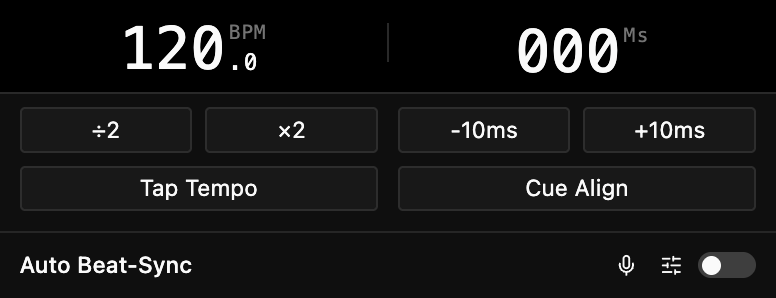
Set it manually by typing a BPM, or nudge it with the double and halve controls when the reading has settled on twice or half the real tempo. Manual tempo is the right choice when you know the BPM in advance or the music has none to detect, such as an ambient set.
Set it by tap tempo: tap along with the music four or more times and Spectralite averages your taps into a BPM. Tapping is quick when you are matching a track by ear and do not know its BPM.
Set it automatically by turning on beat detection, which listens to the incoming audio and finds the tempo for you. It follows the beat of the music and stays locked as the tempo drifts, trimming the clock many times a second so the show tracks a live band that speeds up or a DJ set that eases between tracks. While automatic detection is running it drives the tempo, so the manual field and tap tempo step aside; the double and halve controls stay live so you can correct an octave without dropping the lock. Full setup, the lock indicator, and latency calibration are covered in the Beat Matcher panel reference.
Beat detection reads whatever audio is coming in, the same signal the Audio Spectrum panel visualizes. Choosing and testing that input is covered under Audio input.
Where to go next
The beat clock and the grid are two halves of the same idea: a musical clock, and a schedule written against it. To put them to work, arrange layers in the Timeline panel and drive the tempo from the Beat Matcher. For the wider set of ideas the app is built on, see the Core concepts overview.