
See Your First Effect
Patch one fixture, add it to a mapping, and watch it cycle colors with no hardware attached.
By the end of this page a single virtual fixture is running a color chase in the Preview panel, driven entirely in software. Nothing is plugged in, and nothing needs to be.
Patch a fixture
A fixture is the software stand-in for a light. Patching one gives the app something to render onto.
- Click Fixtures in the top toolbar to open the Fixtures workspace.
- In the Fixtures panel toolbar, click Add fixture.
- Click Select fixture…, pick Holodron from the Spectralite manufacturer group, choose its DMX mode, then click Continue to addressing.
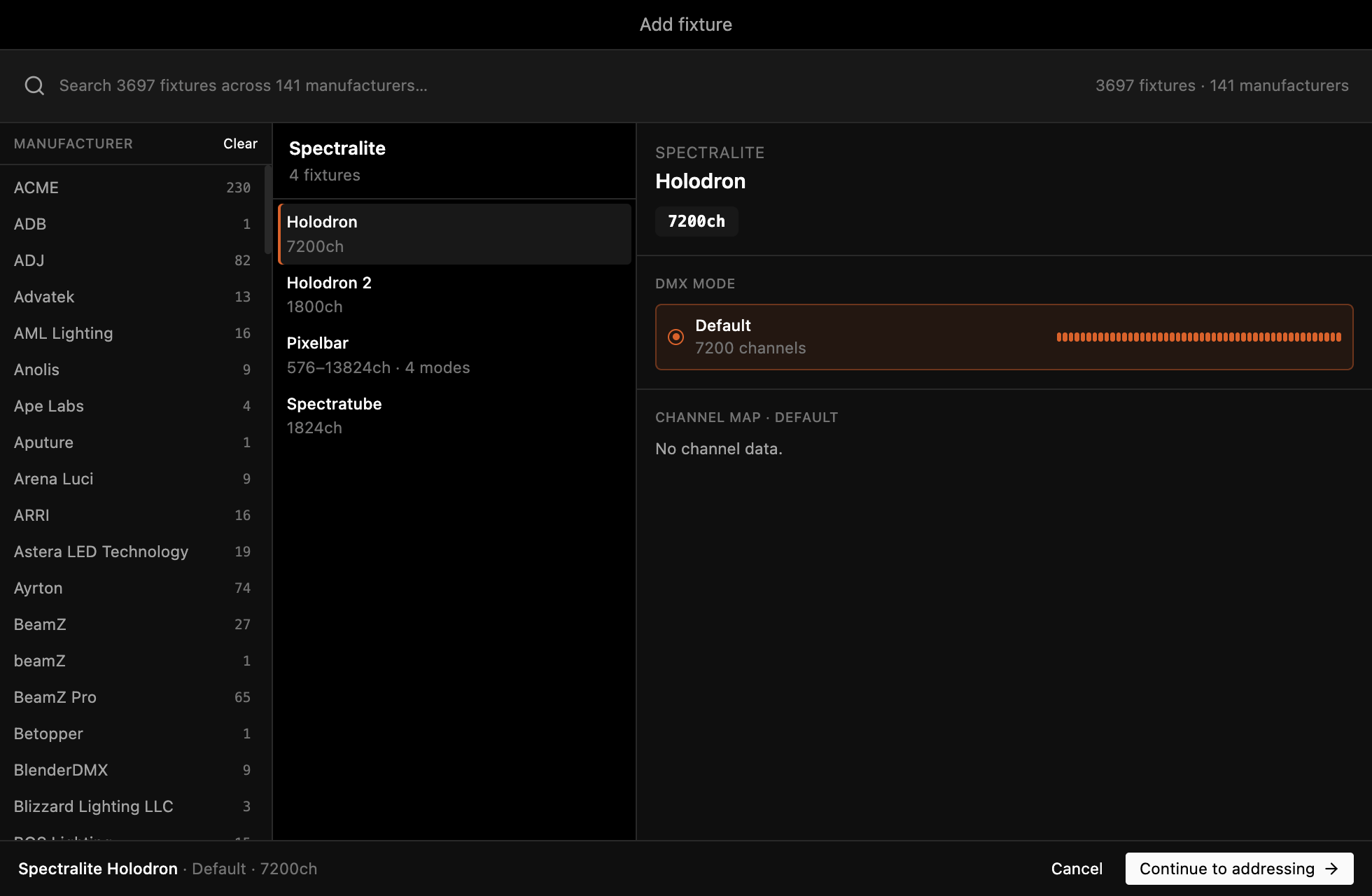
- Set Universe to 1 and Address to 1. You can also click the first cell in the Address Space grid on the right to set both at once.
- Click Patch 1 fixture.
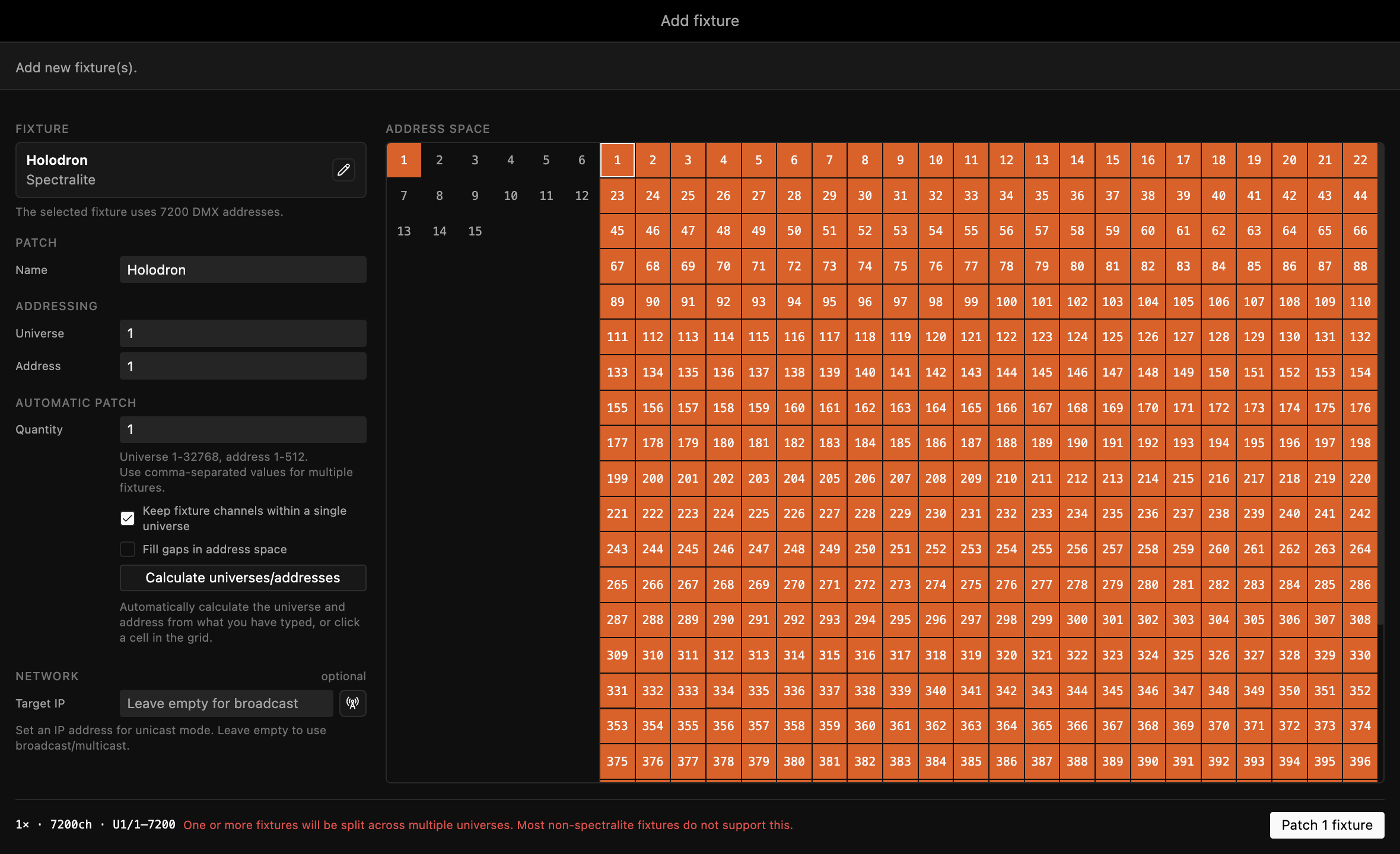
The Holodron now appears in the Fixtures panel list.
For the full set of patching options (multiple fixtures at once, address offsets, universe alignment), see DMX patching.
Add it to a mapping
A mapping arranges fixtures in space so an effect knows where to render each one. New projects ship with an empty mapping named Default.
- Click Position Maps in the toolbar to open that workspace.
- In the Mappings panel, select the Default mapping.
- In the mapping's Fixtures list, click your Holodron to add it.
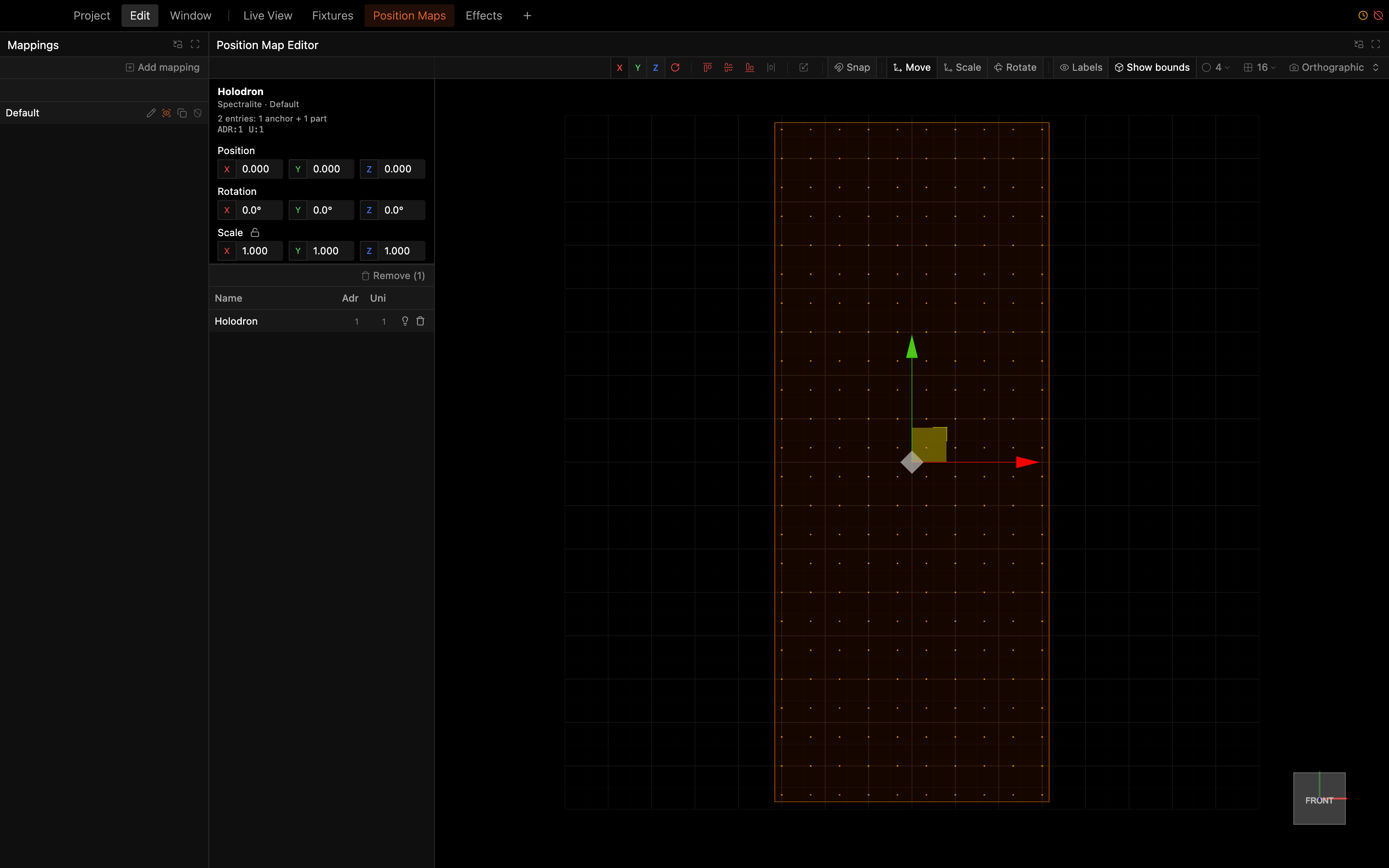
If the fixture doesn't appear in the mapping's Fixtures list, confirm it's patched, because an unpatched fixture can't be mapped.
Watch it run
The Live View workspace opens with a Chaser effect already sitting on a Timeline layer at full opacity. Now that your Holodron is in the mapping, that layer has somewhere to render.
- Click Live View in the toolbar.
- In the Timeline, find the Chaser layer. Its Opacity ships at full, so drag the slider down and back up to watch the fixture fade out and in.
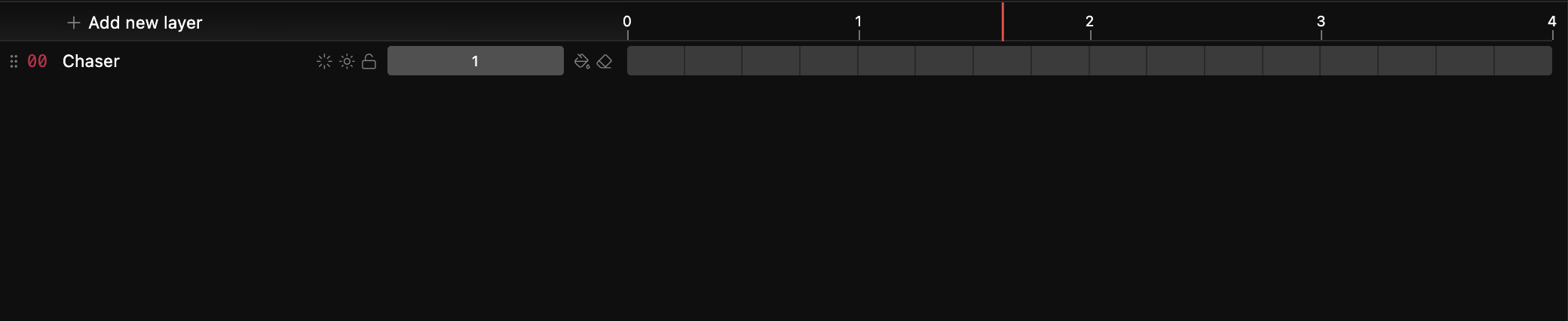
The Preview panel now shows the Chaser lighting your Holodron.
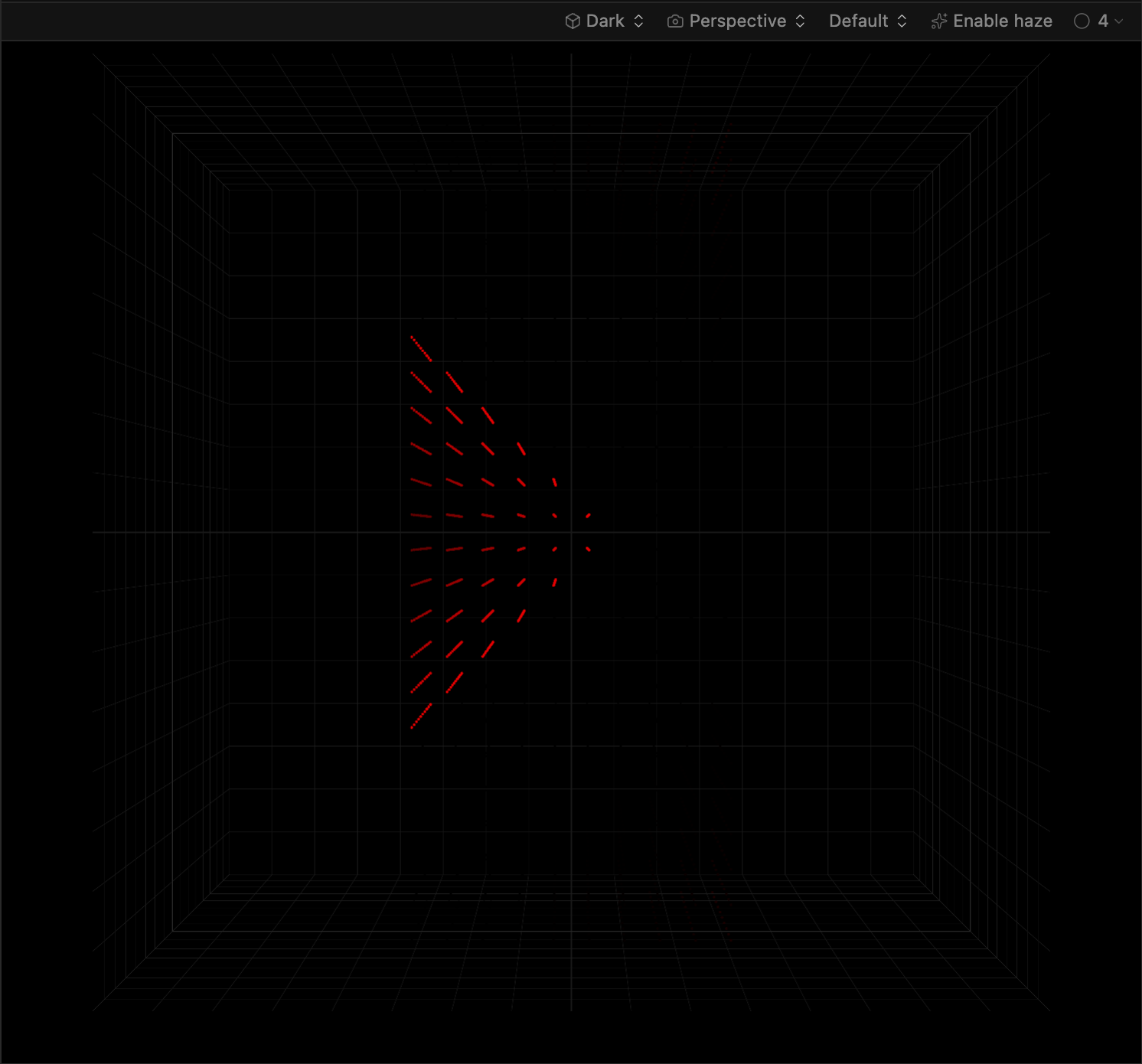
That's a working effect running end to end, from patch to render.
Next steps
- Explore the interface: learn where each panel lives
- Connect your lights: send this output to real hardware