
Position Maps
How placing fixtures in space gives effects the geometry they render onto, so a fixture's position decides how a wave or gradient falls across the rig.
A position map places your fixtures in space so an effect has something to render onto. On its own, a patched fixture is a set of DMX channels with no location: the engine knows it exists but not where it sits in your rig. Put that fixture into a map and you give it coordinates, and coordinates are what turn an abstract effect into a picture that lands on real hardware.
Think of the map as the stage seen from above and from the side at once. You drop each fixture where it physically hangs, and every pixel inside that fixture inherits a position from where you placed it. An effect then reads those positions. That single idea, position in and color out, is the whole reason maps exist.
Effects read positions
An effect in Spectralite is a function evaluated once per pixel, and the input to that function is the pixel's coordinate. The engine walks every pixel in the map, hands the node graph that pixel's (x, y, z), and takes back a color. Two pixels at the same coordinate get the same color; a pixel's color depends only on where it sits.
This is why placement drives the look. Take a rainbow that ramps its hue with the pixel's horizontal coordinate. A fixture on the left of the map samples the low end of that ramp and reads red; a fixture on the right samples the high end and reads violet. Slide that right-hand fixture back toward the center in the editor and it now samples the middle of the ramp, so its color changes, without you touching the effect at all. The effect never moved. The fixture did, and the coordinate it feeds the effect moved with it.
The same mechanic explains chases and waves. A chase is a bright band whose position sweeps over time; each pixel lights when the band reaches its coordinate, so pixels laid out left to right fire left to right, and pixels stacked in a column fire bottom to top. Rearrange the fixtures and the motion rearranges to match, because the motion was never in the fixtures, it was in how their coordinates relate to the moving band.
The node that hands the pixel's coordinate to your graph is Pixel Position (see the Input nodes). It outputs a single Vector carrying all three axes. Wire it into anything that reads a location: distance and containment tests, falloffs, and the signed-distance shapes in the Spatial nodes. Those nodes are the bridge between where a fixture sits and what it does. For how effects combine and stack once they have their geometry, see Effects and layers.
Coordinates are normalized and centered
You place fixtures on a unitless grid. The numbers in the editor are grid-relative positions, and the grid's density sets the working scale. When the engine samples the map, it converts those placements into a normalized space that runs roughly from 0 to 1 on each axis, centered on 0.5. A fixture sitting at the origin of your layout lands at the middle of that space, at (0.5, 0.5, 0.5).
Two consequences follow from this that are worth holding onto. First, most effects assume their input runs across roughly 0 to 1, so a fixture parked near the center reads the middle of any gradient and a fixture pushed toward an edge reads an extreme. Second, nothing clamps the range. Spread your fixtures far apart with large moves or scales and their coordinates can push past 0 and 1, at which point they sample whatever the effect does beyond its usual span. The space is normalized by convention; no bounding box squeezes your layout to fit.
You never type a 0-to-1 figure yourself. You place fixtures by eye against the grid, and the normalization happens downstream. What you are really setting is the relationship between fixtures: which is left of which, how far apart they sit, how they stack.
The viewport is 3D
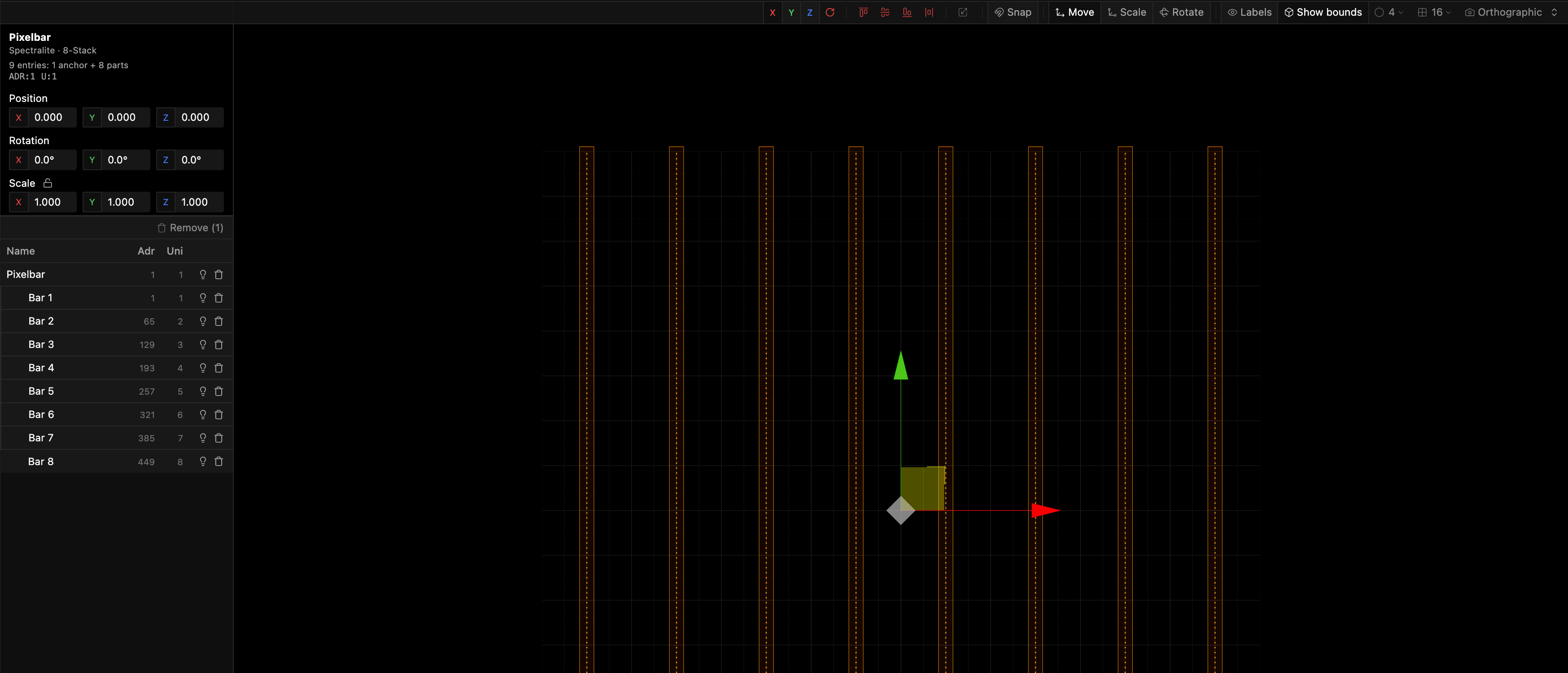
The map is a real three-dimensional space. The Position Map Editor gives you a full 3D scene: orbit, pan, and zoom the camera, switch between Perspective and Orthographic, and move fixtures on all three axes with the transform gizmo. The axis selector, the 90 degree rotate, and the align and distribute tools all act on whichever of X, Y, or Z you have chosen.
Depth is meaningful to the exact extent your layout provides it. A flat rig, a single strip or one matrix plane, sits at a constant or planar Z, so two-dimensional effects behave two-dimensionally, following the shape of the data you gave them. Place fixtures at different depths and the Z-aware nodes, the 3D containment tests and the signed-distance shapes, start to matter. A sphere effect, for instance, is genuinely a sphere: fixtures nearer its center in all three axes read brighter than fixtures out at the edge.
The Preview panel shows the payoff. It renders every mapped fixture as colored points in the same 3D space, one point per pixel showing its current color, so you can watch an effect fall across the rig exactly as the map lays it out.
Groups keep the parts of one fixture together
Some fixtures are physically several pieces, a multi-bar unit or a stack of strips, and Spectralite calls those pieces parts. A group exists for one job: to keep the parts of a single multi-part fixture moving as a unit, so you can drag the whole thing without it coming apart. Every member of a group belongs to the same fixture. You cannot group two different fixtures together.
A group is a placement convenience for compound fixtures, and that is its whole scope. Spectralite has no rig zones, washes, or named sections of your stage to configure. To make an effect treat a region of the rig differently, do it through position: place those fixtures where a spatial node can pick them out by coordinate, using a containment test or a falloff. The mechanics of grouping, joining, and breaking apart live in the Position Map Editor.
What a map does not hold
A map is a name and a set of placed fixtures. That is the entire object, and a few things that sound like they belong on it do not.
A map is a coordinate space that fixtures live inside, with no width, height, or resolution to set. Its extent is simply wherever you have placed them.
A map holds no DMX addresses and no output routing. Addressing belongs to the patched fixture, its start address and universe, set when you patch it, and network output is configured for your fixtures and nodes, never per map. Adding a fixture to a map only gives that fixture a position; it does not re-address it or change where its data goes. Manage the maps themselves, create, rename, duplicate, and delete, from the Mappings panel.
Where to go next
Effects and layers
How effects read a map's geometry and stack into a finished look.
Position Map Editor
Place, move, align, and group fixtures in the 3D viewport.
Spatial nodes
Distance tests, containment, falloffs, and signed-distance shapes that read a pixel's position.
Core concepts
How fixtures, maps, effects, and output fit together.