
Explore the Interface
A tour of Spectralite's workspaces, the preset panel layouts along the top of the window that group panels for each part of building a show.
Spectralite groups its panels into workspaces, each a preset layout tuned for one part of building a show. Switch between them with the tabs along the top of the window, and add your own with the + beside them.
Workspaces
Live View
Build and run the show here. The Preview renders your lighting output in real time, so you can design a whole show with nothing plugged in.
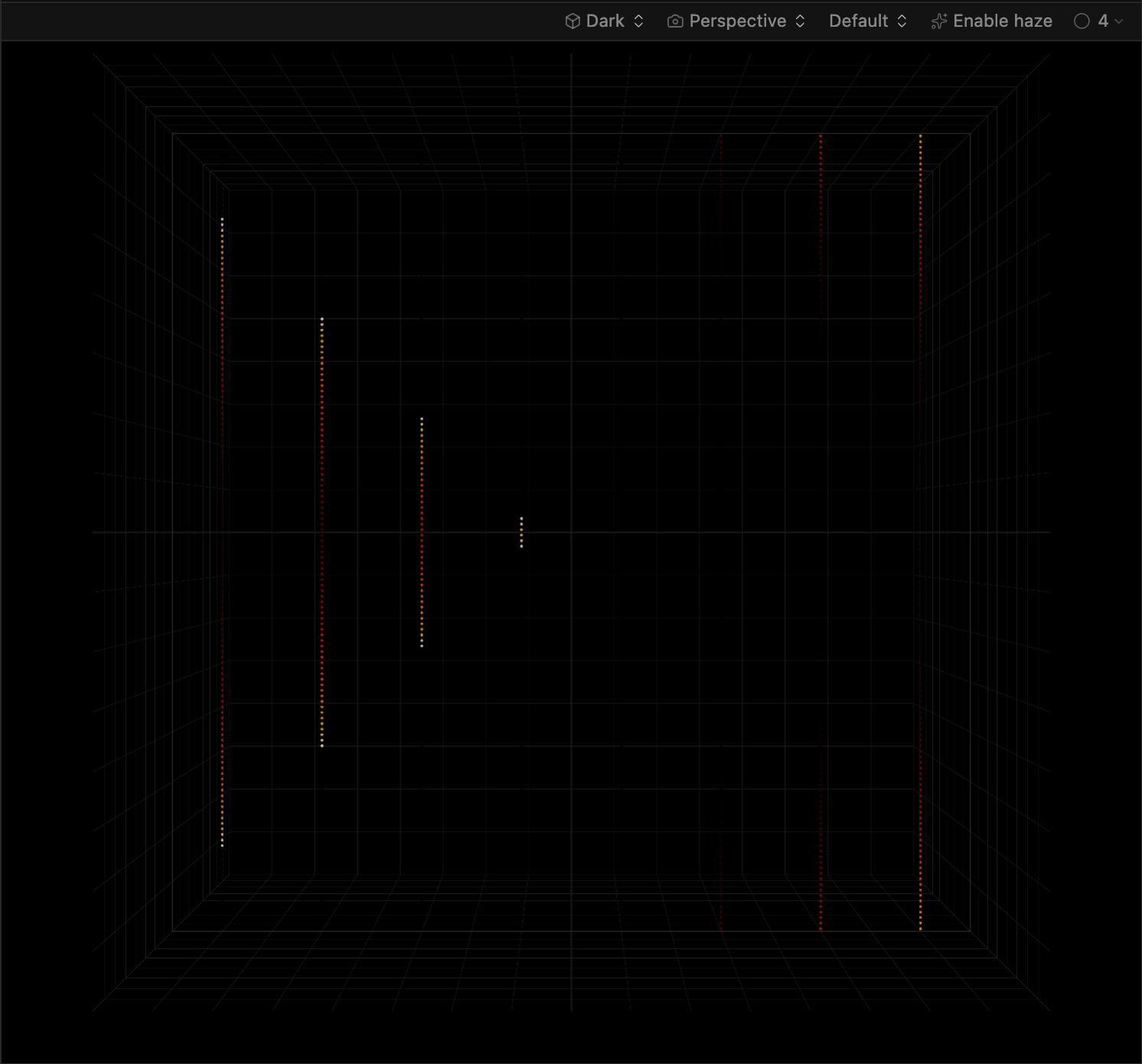
The Timeline underneath stacks effect layers and controls their timing. Higher layers blend with or override lower ones, and positions are measured in beats, so the show stays in step when the tempo changes.

The same workspace also holds the Parameters panel for manual channel control (dimmer, pan and tilt, gobos, color wheels) and the Beat Matcher, which sets the BPM that beat-based effects follow, with Tap Tempo and Cue Align for locking onto a live track.
Fixtures
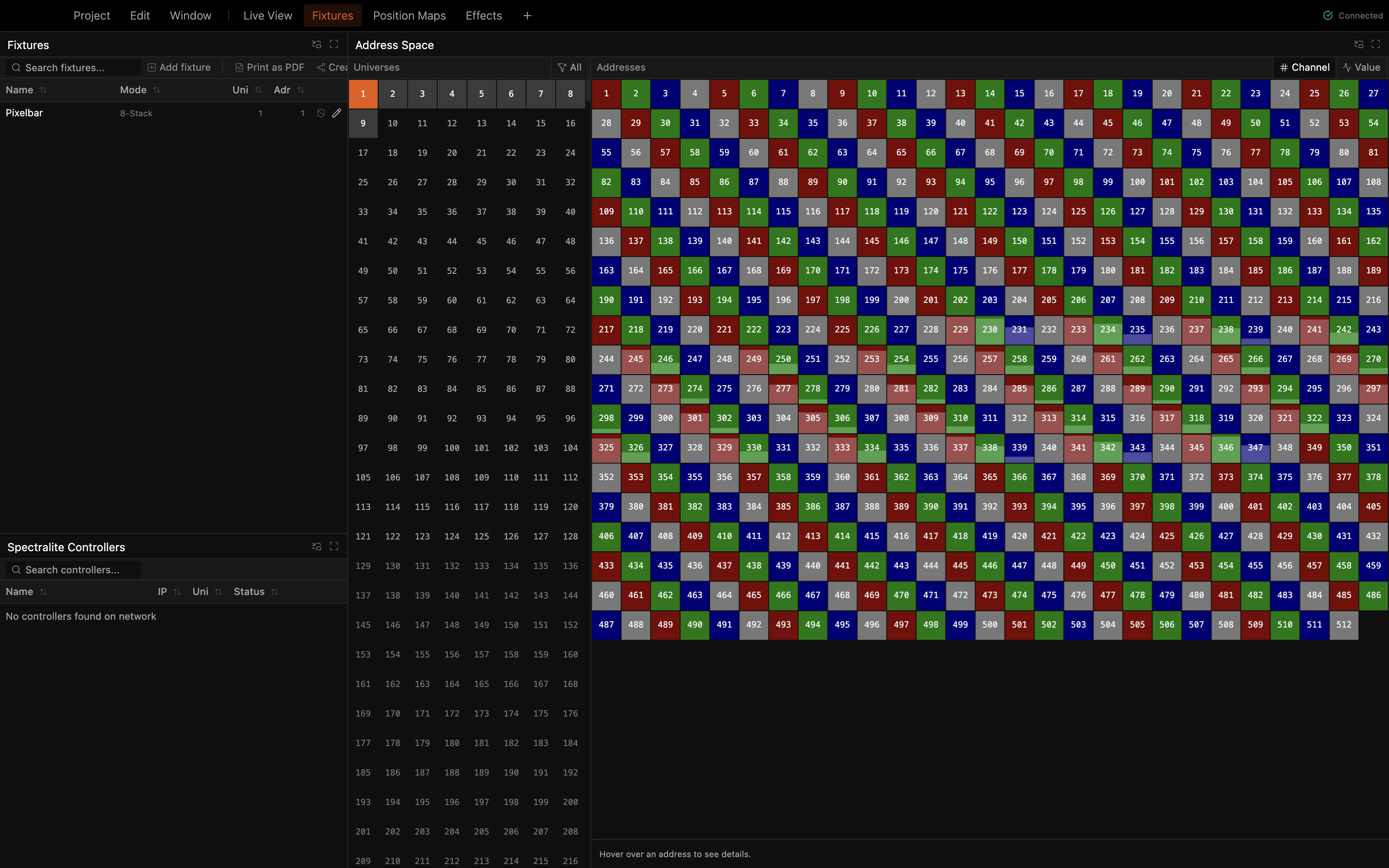
Patch and address your lights here. The fixture list sits next to the Address Space grid, which shows exactly which DMX channels each fixture occupies across every universe.
Position Maps
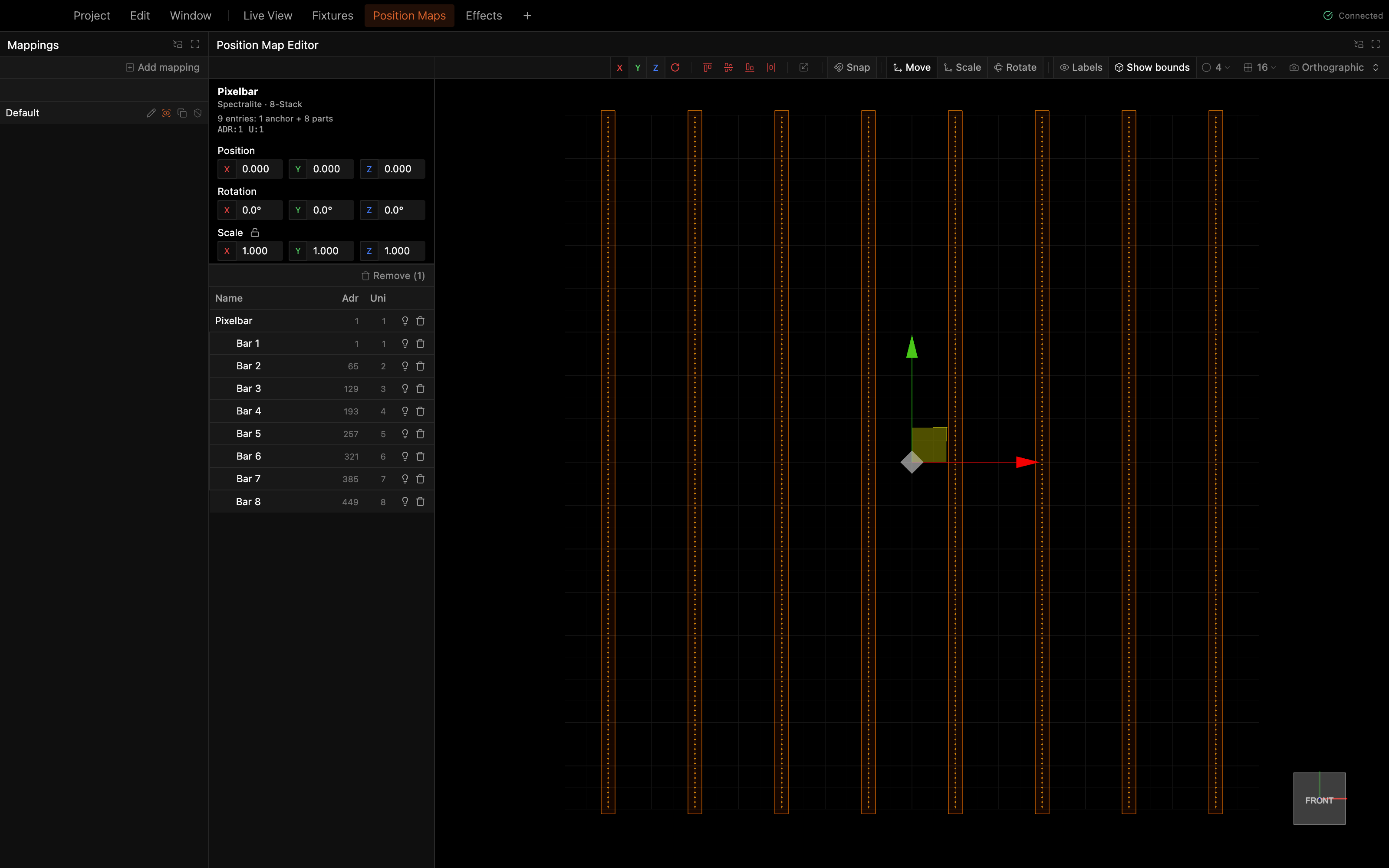
Arrange fixtures in space so effects know where to render each one. Drag fixtures around the 3D viewport, then rotate, scale, align, and distribute them.
Effects
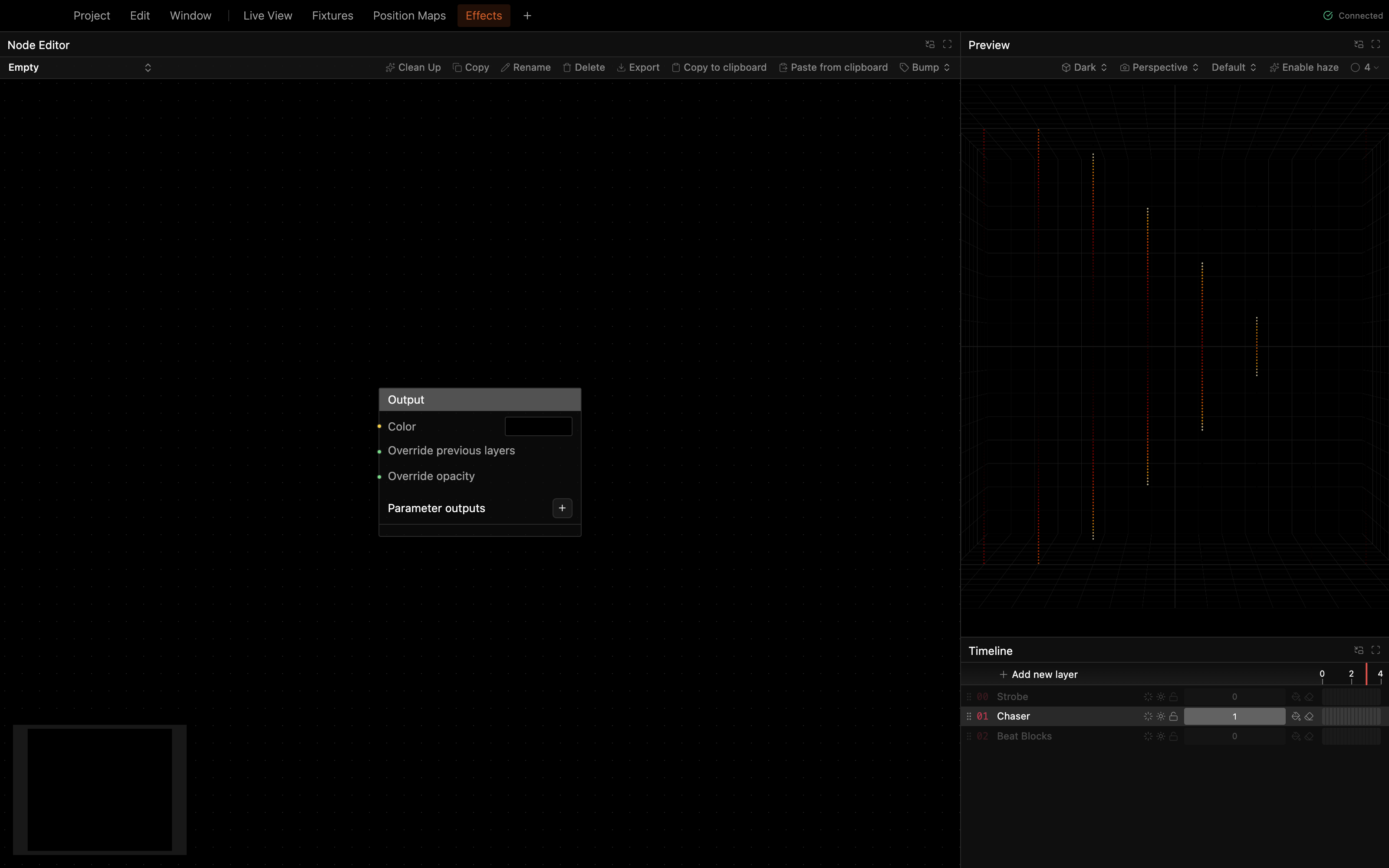
Open the Node Editor to build custom effects from scratch by wiring nodes into an Output. This is the advanced end of the app; most shows are built entirely from the effects that ship with Spectralite.
Customizing layouts
Workspaces are a starting point. You can reshape any of them:
- Drag panel borders to resize.
- Add panels from Window > Add panel, including Audio Spectrum, History, and Spectralite Controllers.
- Add another workspace tab from Window > Add workspace, choosing a preset or an empty layout.
- Restore the defaults with Window > Reset workspaces.
MIDI and DMX input mappings live under Edit > Inputs. See MIDI Input and DMX Input for those.