
Layouts
How a fixture's place in a layout decides how a wave or gradient falls across the rig.
A fixture layout, or layout for short, places your fixtures in space so an effect has positions to render onto. A patched fixture on its own is a set of DMX channels with no location. The engine knows it exists but not where it sits in your rig. When you put the fixture into a layout, it gets coordinates. The effect uses those coordinates to decide what each part of the hardware shows.
You place each fixture where it physically hangs, and every pixel inside that fixture takes its position from where you placed it. An effect reads those positions and returns a color for each one.
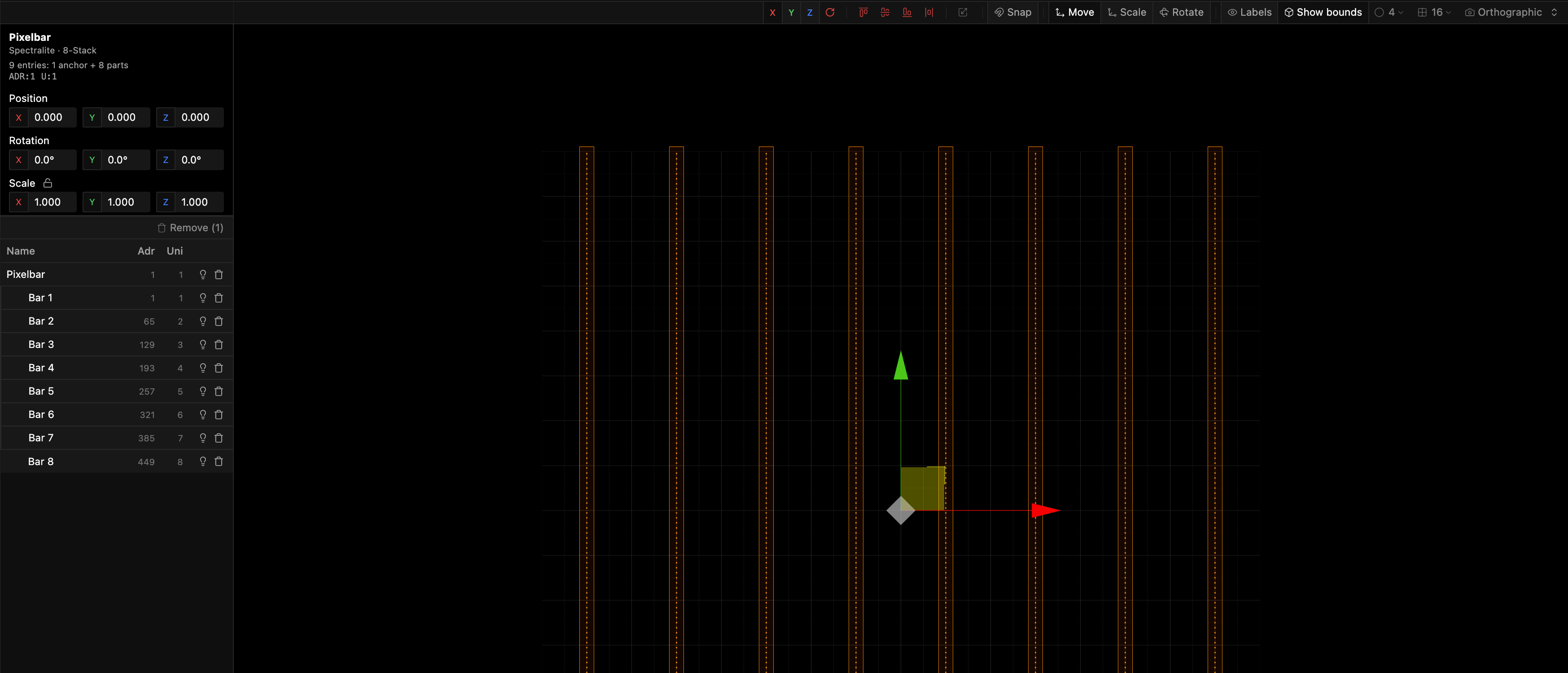
Effects read positions
The engine evaluates an effect once per pixel, with the pixel's coordinate as the input. For every pixel in the layout, it passes the node graph that pixel's (x, y, z) and gets back a color. Two pixels at the same coordinate get the same color, because a pixel's color depends only on where it sits.
As a result, placement decides the look. Take a rainbow that ramps its hue with the pixel's horizontal coordinate. A fixture on the left of the layout samples the low end of that ramp and reads red. A fixture on the right samples the high end and reads violet. If you slide the right-hand fixture toward the center in the editor, it samples the middle of the ramp. Its color changes, although you never touched the effect.
Chases and waves work the same way. A chase is a bright band whose position sweeps over time, and each pixel lights when the band reaches its coordinate. Pixels laid out left to right fire left to right, and pixels stacked in a column fire bottom to top. When you rearrange the fixtures, the motion follows the new layout.
The node that hands the pixel's coordinate to your graph is Pixel Position (see the Input nodes). It outputs a single Vector carrying all three axes. Wire it into anything that reads a location: distance and containment tests, falloffs, and the signed-distance shapes in the Spatial nodes. For how effects combine and stack once they have their geometry, see Effects and layers.
Coordinates are normalized and centered
You place fixtures on a unitless grid. The numbers in the editor are grid-relative positions, and the grid's density sets the working scale. When the engine samples the layout, it converts those placements into a normalized space. This space runs roughly from 0 to 1 on each axis and is centered on 0.5. A fixture at the origin of your layout lands at the middle of that space, at (0.5, 0.5, 0.5).
This has two consequences. First, most effects assume that their input runs across roughly 0 to 1. A fixture near the center thus reads the middle of any gradient, and a fixture toward an edge reads an extreme. Second, nothing clamps the range. If you spread fixtures far apart with large moves or scales, their coordinates can go past 0 and 1. Those fixtures then sample whatever the effect does outside its usual span.
You never type a 0-to-1 figure yourself. Instead, you place fixtures by eye against the grid. What you set is the relationship between them: which is left of which, how far apart they are, and how they stack.
The viewport is 3D
A layout is a three-dimensional space. In the Layout Editor you orbit, pan, and zoom the camera, and switch between Perspective and Orthographic. You move fixtures on all three axes with the transform gizmo. The axis selector, the 90 degree rotate, and the align and distribute tools all act on whichever of X, Y, or Z you choose.
Depth matters only as far as your layout uses it. A flat rig, such as a single strip or one matrix plane, sits at a constant or planar Z, so two-dimensional effects behave two-dimensionally on it. When you place fixtures at different depths, the Z-aware nodes start to matter. These are the 3D containment tests and the signed-distance shapes. A sphere effect, for example, is a true sphere, and fixtures nearer its center in all three axes read brighter than fixtures at the edge.
The Preview panel renders every mapped fixture as colored points in the same 3D space, one point per pixel showing its current color. You can watch an effect fall across the rig as the layout places it.
Moving heads sit as they hang
Some fixture definitions describe heads (the parts that pan and tilt turn). Every layout places such a fixture as it hangs, with its face turned the way its light leaves it. At rotation 0, 0, 0 the face points the way the light leaves the fixture at rest. For a typical hung moving head, that direction is down, with the face's top edge toward the audience. The rotation fields thus describe how the fixture is oriented on the rig. Every other fixture keeps the face-on layout its definition draws.
To stand a moving head on the floor, select it in the Layout Editor. Then set its Rotation X to 180, or turn it half a turn about X with the gizmo. The head then points up with its top edge toward the back. Its pixels and beams turn with it, as they do on a real head.
Effects read each pixel where the head's face actually is. A hung head's face lies flat. So a gradient that runs from the back of the stage to the front crosses each face from its back edge to its front edge. It crosses the floor beneath in the same way. If you switch a moving head to another Pixel layout, it turns about the same points as in its first one.
Pixels that follow pan and tilt
Each layout has a Pixels follow pan/tilt switch. It is in the right-click menu of the Layouts panel and in the Layout Editor toolbar. With it on, every pixel a moving head carries moves with the head as it pans and tilts, and effects read the moved position. A wave crossing the stage lights a head's pixels where they point right now, not where they sat when the head was at rest. Pixels on a fixture's static base stay where they are.
A head's other outputs, such as its dimmer, zoom or color wheel, follow the head too. Pan and tilt themselves are always read at rest, so a movement effect never chases its own output. Random Position keeps the value it gives each pixel while the head moves, because it reads the rest position.
At rest the switch changes nothing, so you can turn it on or off at any time. A new project's first layout has it on, and a layout you add next to it starts with it off. When you duplicate a layout, the copy keeps the switch setting.
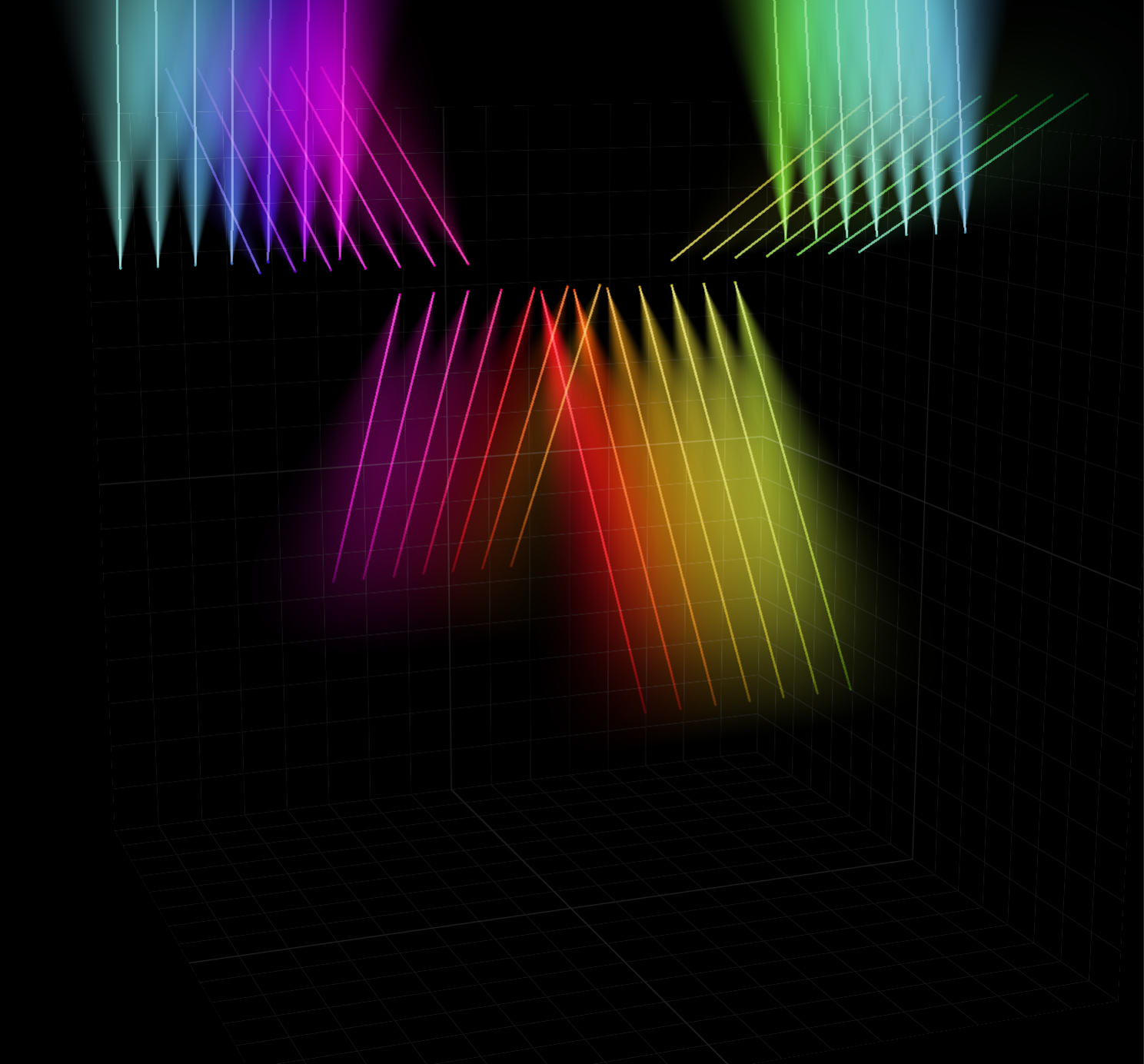
Pixel positions follow pan and tilt one frame behind, about 17 ms at 60 fps. When the computer falls behind, a frame keeps the previous position for one more frame. The Layout Editor always shows heads at rest. The Preview shows them where they point.
Groups keep the parts of one fixture together
Some fixtures are physically several pieces, such as a multi-bar unit or a stack of strips. Spectralite calls those pieces parts. A group keeps the parts of a single multi-part fixture moving as a unit, so you can drag the whole fixture at once. Every member of a group belongs to the same fixture. You cannot group two different fixtures together.
Groups only help you place compound fixtures. Spectralite has no rig zones, washes, or named sections of your stage to configure. To make an effect treat a region of the rig differently, place those fixtures where a spatial node can pick them out by coordinate. A containment test or a falloff can do this. The Layout Editor page covers grouping, joining, and breaking apart.
What a layout does not hold
A layout holds a name, a set of placed fixtures and its Pixels follow pan/tilt switch, and nothing else.
A layout has no width, height, or resolution to set. Its extent is wherever you place fixtures.
A layout also holds no DMX addresses and no output routing. Each patched fixture carries its own start address and universe, which you set when you patch it. You configure network output for fixtures and nodes, never per layout. When you add a fixture to a layout, it gets a position. Its address and the destination of its data stay the same. Create, rename, duplicate, and delete layouts in the Layouts panel.
Where to go next
Effects and layers
How effects read a layout's geometry and stack into a finished look.
Layout Editor
Place, move, align, and group fixtures in the 3D viewport.
Spatial nodes
Distance tests, containment, falloffs, and signed-distance shapes that read a pixel's position.
Core concepts
How fixtures, layouts, effects, and output fit together.