
Color panel
The Color panel authors a project's primary, secondary, and tertiary preset colors, which effects reference so one change restyles them all.
The Color panel authors the project's three preset colors, the primary, secondary, and tertiary, side by side. Effects reference them by name, so a change here restyles every effect that uses the color.
Related concept: Color, which explains the three color modes, Tuning, how layers stack, and how a color lands on each fixture.
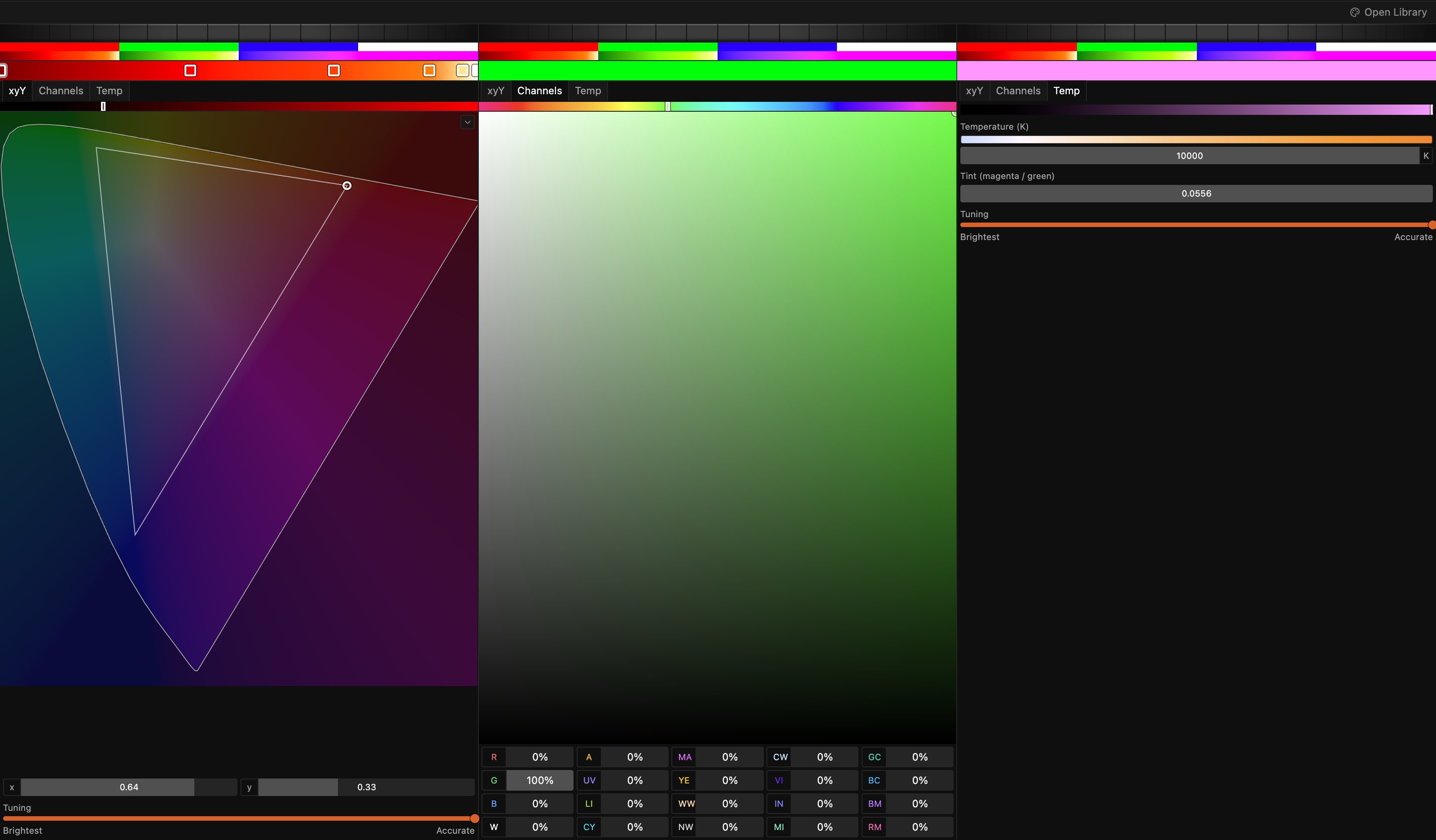
One column per preset color
Each column has the same layout, top to bottom.
- A hue strip. Drag across it, or scroll over it, to rotate the hue of the whole gradient. For a Temp gradient it sweeps the whites from warm to cool instead.
- The swatches of the active color library. Click one to apply it to this preset.
- The gradient bar with its stops. Right-click the bar and choose Add stop here to insert a stop at the cursor. Drag a stop to move it, click one to edit its color, and right-click a stop and choose Delete stop to remove it.
- The xyY, Channels, and Temp tabs, which set the color mode of the whole gradient. Clicking a tab converts every stop.
- The picker for the selected stop.
The picker in each mode
xyY shows the CIE chromaticity diagram. Click or drag in it to set the hue and saturation, or type x and y directly. The thin bar above the diagram is Brightness, from 0 to 100%, where 100% is as bright as this color gets on each fixture. A chevron in the diagram's corner toggles reference outlines for the Rec.709 (sRGB) and P3 gamuts and switches between the CIE 1931 and CIE 1976 diagrams. Below the fields sits Tuning, from Brightest to Accurate, and it applies to the whole gradient. See Tuning for what it does.
Channels shows a hue bar, a saturation and brightness area, and a grid of twenty percentage fields, one per emitter role: R, G, B, W, A, UV, LI (lime), CY, MA, YE, WW, NW, CW, VI (violet), IN (indigo), MI (mint), GC, BC, BM, and RM (pink). Hover a field for its full name. Each value is that emitter's share of its full light output. The hue bar and the area rewrite the red, green, and blue fields and leave the others alone.
Temp shows the same Brightness bar, then Temperature (K) as a slider and a kelvin field, Tint (magenta / green), and Tuning.
Color libraries
Above each color is a grid of swatches from the active color library, Spectralite's equivalent of a gel swatch book. Click a swatch to apply it to that preset color. Open the full set with Open Library in the toolbar, where you can browse and import libraries, manage which swatches show as shortcuts, and create, edit, copy, or delete colors.
MIDI control
Preset colors can be driven from a controller through the MIDI Input dialog. You can adjust the hue of the primary, secondary, or tertiary color, or select colors from the active library or the full library.
Related
- Color: the model behind the three modes.
- MIDI Input dialog: map a controller to color controls.
- Node Editor: build effects that reference the preset colors.