
Winches
Patch a Wahlberg DMX winch, drive it from its channels, and see its hook move in the Preview at the winch's own speed.
Spectralite has a built-in definition for every Wahlberg DMX winch. A winch is a fixture with a hook that moves up and down. Spectralite reads the values it sends to the winch and simulates where the hook is. The hook moves at the winch's own speed and ramp, so the Preview shows a move as the real winch makes it.
The simulation works from the DMX values only. Spectralite never reads the position of the real winch.
The Preview never confirms that a move is safe or that the area under a load is clear. Check the real rig before every move.
Patch a winch
- In the Fixtures panel, click Add fixture.
- Search for Wahlberg and pick your model.
- Pick the mode, and patch the winch at the address you set on the device.
The library has these models:
| Family | Models |
|---|---|
| A | Winch 1, Winch 3, Winch 10, Winch 10 Cable |
| B | Winch 25, Winch 25 Curtain, Winch 25 Double, Winch 25 Double Cable, Winch 50, Winch 50 Double, Winch 50 Double + Power and CAT5, Winch 50 Pilewind, Winch 50 Pilewind Power |
A Family A winch has a MODE selector on the device, and its definition has one mode for each setting: Auto reset 16-bit, Manual reset 16-bit, Auto reset 8-bit and Manual reset 8-bit. The Winch 1 also has Inverted auto reset 16-bit and Inverted manual reset 16-bit. Pick the mode that the device is set to, because the two reset types start up differently. A Family B winch has one mode.
Copy the device's settings
Each Wahlberg winch has its own settings for its wire length, its limits, its speeds and its ramp. If you changed them on the device, copy them into Device setup in the fixture's edit form. Device setup describes each field. A field that you leave empty keeps the value from the definition.
Place it in a layout
Add the winch to a layout as you add any fixture (see Layout Editor). Put it where the real winch hangs. The Preview draws the winch as a box, with its hook at the top of its travel. When the winch lowers, the hook comes out under the box. The Layout Editor draws each hook as a small blue hook at the top of its travel, wherever the hook rests. To hang a fixture, a group or a truss from the winch, drag from the hook to the item and release. A line and the hook follow the pointer, a dot stays where the hook was, and the item that the release hangs shows its outline. The item stays where it is in the layout, and the hook carries it at that distance as the winch moves. Place the item where it hangs when the winch is at the top of its travel. Only the hook that you drag from carries the item, also on a winch with more hooks. A fixture that is in no group goes into a new group first, named Winch Group 1 (or the next free number), with all of its parts, and the group hangs. To hang more items from the same hook, drag from it again: each item joins the group where it stands. Press Esc to stop the drag.
To hang a truss from winches and move it, see Kinetic rigs.
The DMX channels
A Family B winch has six channels:
| Channel | Parameter | What it does |
|---|---|---|
| 1 and 2 | Position | The 16-bit target. 100 % is the top limit and 0 % is the bottom limit. |
| 3 | Speed | The speed of a move. At 0 the winch holds where it is. |
| 4 | Enable motor | From 128 to 140 the motor runs. Any other value stops it, resets its errors and saves its position. |
| 5 | Set top limit | Runs the winch up and sets the top limit (see below). |
| 6 | Set bottom limit | Runs the winch down and sets the bottom limit. |
A Family A winch has seven channels:
| Channel | Parameter | What it does |
|---|---|---|
| 1 and 2 | Position | The target. 100 % is the top limit (inverted modes: 0 %). The 8-bit modes do not use channel 2. |
| 3 | Speed | The speed of a move. At 0 the winch holds where it is. |
| 4 | Top limit shift | Moves the top limit down, up to 3 m at 100 % (Winch 1: 5 m). |
| 5 | Bottom limit shift | Moves the bottom limit up, up to 10 m at 100 %. |
| 6 | Find top / up | Runs the winch up. In a manual reset mode, the release sets the top. |
| 7 | Down | Runs the winch down. |
A new winch starts with every channel at 0, except Position. Position starts at the top limit: 100 %, or 0 % in an inverted mode. Because Speed is 0, a new winch stays at its top.
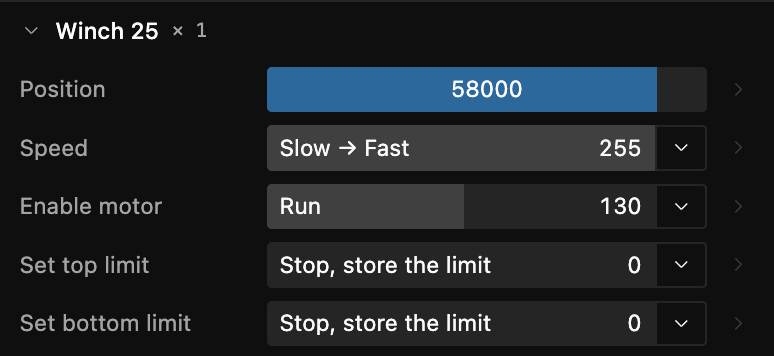
To drive a winch by hand, set its channels in the Parameters panel. To drive it from a controller, map the channels with MIDI Input or DMX Input.
Move a Family B winch
- Set Enable motor to a value from 128 to 140.
- Set Speed above 0.
- Set Position to the height you want.
The winch speeds up and slows down over its ramp time, and it stops at the target. A fade on Position moves the hook smoothly. If you lower Speed during a move, the winch slows down to the new speed.
Enable motor runs the motor only after a change into its window. If the value is already from 128 to 140 when the winch switches on, the winch does not move. Set the channel outside the window, then back inside it.
Teach the limits
The winch stores its top and bottom limits. It keeps them when you switch it off. Spectralite takes the limits of a winch only from its Device setup, so enter the limits there after a teach. Then the Preview, positions and effects use the same limits as the winch.
- Set Set top limit to 2 % or more (Winch 25 Curtain: 10 %) and keep it there. After 3 seconds, the winch runs up. A higher value runs it faster.
- At the height you want, set the channel back to 0. The winch stores that height as its top limit.
- Set the bottom limit the same way with Set bottom limit.
- Measure the new limits. In Device setup, enter the top as Soft top and the distance from the top to the bottom as Span.
After you release the channel, the winch goes back to the Position target if Speed is above 0. A new top limit moves the whole range with it. A new bottom limit changes how far the range goes.
Move a Family A winch
Set Speed above 0 and set Position. A Family A winch has no enable channel. The two shift channels move its limits while it runs, and Find top / up and Down run it by hand at the speed of their value.
How a Family A winch finds its top after it switches on depends on its mode:
- In an auto reset mode, the winch waits until Speed is above 0. Then it runs slowly up to its top, and then it goes to the Position target.
- In a manual reset mode, the winch holds until you run it up with Find top / up and release the channel. The winch takes the height where you release it as its top. Release it at the Soft top of its Device setup, because Spectralite uses that top.
Simulate Power-On
A real winch that you switch off and on again must reset, but a winch in Spectralite never switches off. To rehearse the cues that reset your winches, choose Edit > Simulate Power-On. Every winch then behaves as if you just switched it on:
- A Family A winch finds its top again, as its mode says.
- A Family B winch keeps its limits. It waits for Enable motor to leave its window and come back.
The command has no key. To give it one, record a key in Window > Shortcuts (see Keyboard Shortcuts).
When you open a project, every winch starts ready, at the position that Spectralite sends. Spectralite assumes that the winches were reset before the show.
Movement setting
With Movement set to Instant, a winch that runs jumps to its target. The enable window and a Speed of 0 still hold it.
A winch that does not move
If no enabled output sends the winch's universe, the simulated winch holds where it is. A real winch also stops when it loses its DMX signal. Open Edit > Outputs and check that an enabled output sends the universe of the winch. If an output has its Universe range filter on, the range must include that universe. With no output enabled at all, Spectralite simulates every winch as if an output sent its universe.
What the simulation cannot see
The simulation knows only what Spectralite sends. These things happen on the device, so the Preview does not show them:
- A move that you start from the device's menu (manual drive).
- The service modes of a Family A winch.
- An emergency stop from the E-STOP input.
- A stop for a slack wire or an overload.
- Inverter errors on the winch's display.
- REVERSE DIR in the device menu, which reverses the motor and its limit switches.
- A load that makes the winch slower than its set speed, and a load that swings on its wire.
The Preview draws each wire straight, from the winch to its hook.