
MIDI Controllers
How Spectralite uses a controller's definition to name its controls, light its LEDs in its own colors, and set it up when it connects, and how buttons, encoders, and faders behave in a mapping.
Spectralite knows some controllers by name. For each one it has a controller definition: what the controller's manual says about its ports, its controls, its LED colors, and any setup it needs. A device with a definition gets:
- control names such as Fader 1 or Button A3 in the mapping editor and in Mapping Mode, in place of raw CC and note numbers;
- status lights in the controller's own colors, and color lights that show a preset or library color;
- setup when it connects, such as switching the Launch Control XL 3 into its DAW mode, and its lights sent again when you change modes on the device;
- bindings made in Mapping Mode with the right kind of action for each control.
Any class-compliant controller works without a definition. See MIDI Input for connecting devices and building mappings.
Picking a controller
Each device row in the Devices pane of the MIDI Input dialog has a Controller select. It starts on Auto, which picks the definition whose port names match the device and shows which one it found, or no match. Pick a definition by name to use it whatever the port is called, which helps with renamed ports and MIDI proxies. Pick None to use no definition.
The list groups definitions by where they come from: In this project, Library, and Built in. Picking one from the library copies it into the project, so the project works the same on another computer. When the definition asks for setup on the device, the row shows it in one line under the select.
A mapping an AI client writes names the controller it was made for. When a device using that controller connects without a mapping, it takes up the first such mapping that no other device uses.
Controllers in the Library Manager
The Controllers tab of the Library Manager (Project > Library Manager) lists every definition Spectralite knows: the project's own, the ones in your controller library, and the built-in ones, marked Built in. Each row names the manufacturer and the number of controls. Import to project copies a definition into the open project, Copy to library saves a project definition to your library for every project, and Export to file writes a .slmc file that Import reads back in. A built-in definition cannot be deleted, while a definition in your library can.
Import refuses a file that is not a valid controller definition and says where it breaks a rule. A definition is known by its name, so importing one whose name the project or your library already has replaces that definition once you confirm. Saving over a built-in definition puts your copy in its place, and deleting your copy brings the built-in one back.
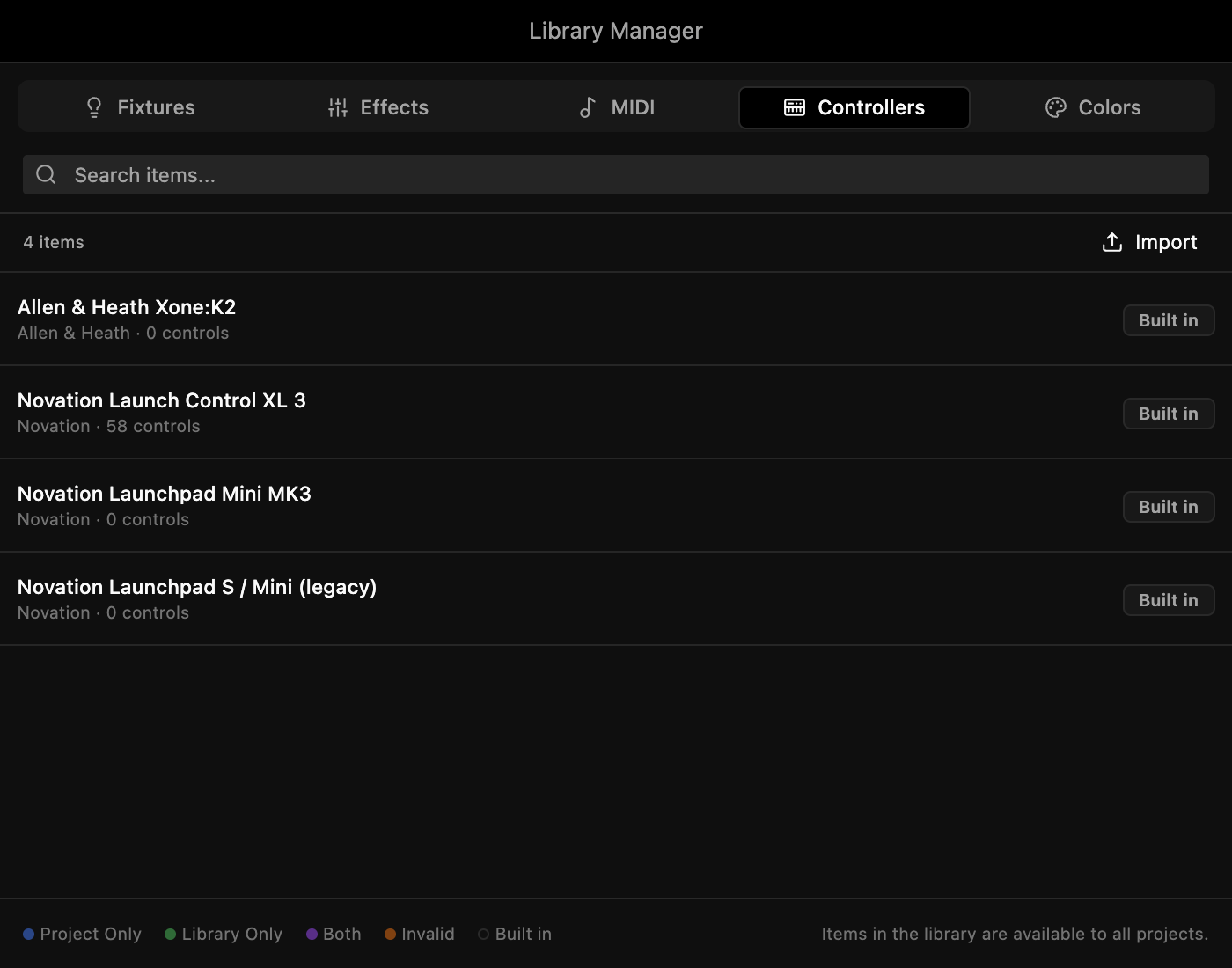
Built-in controllers
| Controller | Setup |
|---|---|
| Novation Launch Control XL 3 | None. Spectralite switches it into DAW mode when it connects and back when it disconnects. |
| Novation Launchpad Mini MK3 | Put it in Programmer mode: hold Session, then press the bottom Scene Launch button. Spectralite must see its "LPMiniMK3 MIDI" port. |
| Novation Launchpad S / Mini (legacy) | None. Colors go out as velocity or CC values on the pad's own note or CC. |
| Allen & Heath Xone:K2 | None. Buttons light red, amber, or green through offset notes, except the Layer and Exit Setup buttons. |
Status lights use each controller's colors: red when a layer is idle or disabled, green when it is active or enabled, amber when it is soloed. A device without a definition gets plain brightness on the button's own note: dark when unassigned, dim when idle, bright when active.
Launch Control XL 3
Spectralite runs the Launch Control XL 3 in DAW mode, where every control reports on the controller's DAW port. macOS lists that port as LCXL3 1 DAW Out (the number is the device ID set on the controller), so assign your mapping to that row, not to the LCXL3 1 MIDI Out row. When you turn the controller's mode knob, it redraws its own lights and Spectralite sends its lights and encoder positions again.
A mapping made on the controller's standalone messages, outside DAW mode, does not match the DAW-mode controls. Rebind it in Mapping Mode, or start from the built-in map.
The built-in map is Novation Launch Control XL 3 (starting layout); import it with Import mapping in the MIDI Input dialog. It has two pages, Layers 1–8 and Layers 9–16, with pickup on:
| Controls | Page 1 | Page 2 |
|---|---|---|
| Faders | Opacity of Timeline layers 1 to 8 | Timeline layers 9 to 16 |
| Button row A | Solo of layers 1 to 8, latched, lit by the layer's state | Layers 9 to 16 |
| Button row B | Bump layers 1 to 8, lit by the bump's state | Bump layers 9 to 16 |
| Encoder row A | Speed of layers 1 to 8 | Layers 9 to 16 |
| Encoder row B | Beat offset of layers 1 to 8 | Layers 9 to 16 |
On every page, encoder C1 sets BPM (60 to 180), C2 the time offset, and C3 to C5 the hue of the primary, secondary, and tertiary preset colors, each lit in that color. Page up and Page down step through the pages, Shift holds page 2 while you hold it, Record is Tap Tempo, and Play is Play / Pause. The encoders take up the value Spectralite sends them, so they always show where the value is. Change any of it like any other mapping.
Buttons
A button bound to Solo, Opacity Override, a bump trigger, or a bump solo has a Mode under Behaviour in the assignment editor:
- Momentary: the target is on while you hold the button.
- Latch: each press turns the target on or off. The release does nothing.
Latch makes a button that springs back act like a toggle switch. A button that is already a toggle switch on the hardware works with Momentary. Toggle controlled value always flips once per press.
Holding a page
A Set mapping page binding has a Mode too:
- Go to: a press switches to the page.
- Hold: a press switches to the page, and letting go returns to the page you were on. With several Hold buttons down, the device returns when you let go of the last one.
Use Hold for a Shift button that reaches a second layer of functions. Next mapping page and Previous mapping page have a Wrap switch: with it on, stepping past the last page goes to the first, and back from the first goes to the last. Without it they stop at the ends.
Encoders
Relative encoders send how far they turned, written in one of several ways. An adjust action (Adjust BPM, Adjust layer opacity, and the other adjust actions) has an Encoding select: Two's complement, Binary offset, Sign bit, or Sign bit 2. Pick the one the controller's manual names, and each tick moves the target by the assignment's Delta, faster turns by more. Threshold (classic) reads the value against the Threshold setting instead, and suits two's-complement encoders that send a single step per message.
Mapping Mode picks the encoding from the controller definition when it has one.
Sending values back
Some controls show a value Spectralite sends them: an encoder that takes up a position, an LED ring, a motorized fader. Turn on Send value back on the assignment, and Spectralite sends the target's current value on the assignment's own message whenever it changes, from the panels, from another controller, or from this one. On a mapping with pages, the control shows the value of the assignment on the device's current page, so switching pages moves it to the new target.
Pickup
A fader that sends no value back can sit somewhere other than the value it controls, for example after you switch pages or change the value on screen. Moving it would make the value jump. Turn on Pickup in the mapping's Pages editor, and such a control takes over only once it reaches the current value: until then its moves do nothing.
Pickup applies to faders, knobs, and other absolute controls. Buttons, relative encoders, and assignments with Send value back are not held back.
Color lights
An LED Feedback assignment can follow a color instead of a layer's state. Pick one of these sources:
- Preset color: the primary, secondary, or tertiary preset color.
- Active library color: the color at a position in the active library list. The light goes dark past the end of the list.
- Library color: one color from the color library. The light goes dark once you delete the color.
The light shows the controller's nearest color, so it needs a controller definition with a color palette. When the definition has several palettes, a Palette select picks one. A very dark color turns the light off.
Mapping Mode with a definition
When the device has a definition that names the control you move, Mapping Mode binds it at once, without the one-second Capturing… window: a relative encoder binds the target's adjust action with the right encoding, and every other control binds the set action. The assignment carries the control's name, and Lights adds the status light on the control's own LED, on CC buttons as well as notes.
More message types
Besides Control Change and notes, an assignment can listen for:
- Pitch Bend and 14-bit CC: high-resolution messages for faders and knobs. They drive actions that set a value, such as opacity or BPM. A 14-bit CC is a pair of CCs, numbered by the lower one (0 to 31).
- Program Change: acts as a button press, for page switches and other button actions.
Outputs can send Pitch Bend and 14-bit CC values too.
MIDI Input
The MIDI Input dialog manages connected MIDI devices, including multiple controllers at once, and maps their controls to Spectralite actions.
DMX Input
The DMX Input dialog manages Art-Net and sACN receivers and maps incoming DMX values to Spectralite actions like layer opacity or parameters.